


The website builder
Home page sections, the Look & feel (thirteen themes, Classic or Trendy, palettes, type, hero layouts, shapes, motion, photo treatments), pages and blog posts (terms, privacy, posts), branding, call button and social links, facility listings, SEO health, AI search and rankings in the SEO suite, pictures, preview and publish.
Every account has a website at its Bayable address (and at your own domain once you add one). You edit a draft, preview it live, and Publish when it's right; visitors only ever see the published copy.
Home page
Website builder → Home page.
- Hero – the big opening: headline, tagline, a picture (or a theme color), and two buttons. The defaults are "See spaces & pricing" and "Tenant login"; both can be renamed or pointed elsewhere. When every space type on the site allows it, the hero also states what's available right now ("61 available").
- Sections – add, reorder (drag or the arrows) and remove: Spaces & pricing (live types, prices and availability, with promotions shown as a struck-through street rate), Feature grid (icons and short lines – gated access, cameras, wide drives…), Facility list (one card per facility with address, phone and a link), About + location (text, hours, a map link), Photo gallery, How it works (the three steps of moving in online), Testimonials, FAQ, Call to action, Text block. Each section has its own fields and a preview.
- Pictures come from the Photo library button on any photo field, from Media (below) or from a link.
Look & feel
Website builder → Look & feel. Thirteen ready-made themes at the top, then two looks and nine choices on top of either, each one independent, so you mix and match. Nothing goes live until you publish.
Themes. One click sets everything below – the look, the colours, the type, the hero layout, corners, background, motion, spacing, buttons and the photo treatment – and puts the theme's own picture on the banner (a picture you uploaded yourself stays). Classic: Harbor (the original site), Meadow, Lakeside, Summit, Desert. Trendy: Coast, Midnight, Sunset, Noir, Urban, Fresh, Twilight, Sunrise. The card with the tick is the theme you're on; change any single piece and the tick clears, because you're now on your own mix. Harbor puts a site back exactly as it was before the Look & feel existed.
- Look – Classic is the original site: a solid header, a photo banner with the steps card, tidy cards on sand and white bands. Trendy is the new one: a floating glass menu over the hero, a large headline with a strip of highlights, bento-style feature tiles, cards that lift, a gradient call to action and a dark footer with your name written large. Switching to Trendy starts it with modern type, a mesh background, gentle motion and glowing buttons; every one of those can be changed.
- Colours – twelve palettes (Harbor, Ocean, Forest, Midnight, Coral, Sunset, Plum, Slate, Sage, Terracotta, Sky, Noir). Your own colours under Branding & navigation still work; typing one there switches the palette to "custom".
- Type – nine pairings of heading and text typefaces: Classic (Public Sans), Clean (Outfit), Editorial (Fraunces), Modern (Space Grotesk + Inter), Bold (Bricolage Grotesque), Soft (Nunito), Elegant (Cormorant Garamond), Friendly (Poppins), Mono (JetBrains Mono). All of them are served from your own website's address, so the page never waits on another server to show its text.
- Hero layout – Photo banner (the original), Split (words left, photo right), Stacked (centred words, photo below), Minimal (big type, no photo), Video (a looping clip behind the words – paste an MP4 or WebM link) and Collage (words beside three photos: the hero photo, then the gallery's and the About photo).
- Shape – Rounded, Soft (pill buttons), Sharp or Pill corners, on every card and button.
- Background – what the hero, the call to action and the dark footer sit on: Plain, Gradient, Mesh (soft colour clouds), Grain, Dots, Waves or Stripes.
- Motion – Still; Gentle (sections fade in as they scroll into view, cards lift on hover); Lively (a bigger rise, bigger lifts and a slow drift in the hero photo). The fade is tied to where a section is on the screen, so a section is never left hidden – whether a visitor scrolls, jumps with a menu link like How it works, or comes back with the browser's back button. Browsers that can't do it (Firefox today) show everything without the fade, and visitors who asked their device for less motion get none.
- Spacing – Airy, Regular or Compact.
- Buttons – Solid, Outline, Glow (a soft halo) or Soft (tinted, no border).
- Photos – a treatment for every picture on the site: Natural, Warm, Cool, Duotone (your primary colour over the photo) or Black & white.
- Highlights strip (Trendy) – the chips under the hero: your own words, or the feature grid's titles when blank.
- Surprise me deals a new mix that keeps the look you're on; a theme card takes you back to a known good one.
Pages & blog
Pages beyond the home page, each with its own address: an About or FAQ page, your Terms & conditions (/terms) and Privacy policy (/privacy), and blog posts (/blog/your-post, listed newest first at /blog). Each page has a title, an address, a summary, a body and a picture; posts also have a date. The body is plain text – a blank line starts a new paragraph, “## ” starts a heading, “- ” a bullet. Tick In the menu to put a page in the header (a Blog link appears once any post is in the menu) and In the footer for the terms and privacy links. Pages and posts go out with the next Publish, and search engines get them in the sitemap.
Your Terms of Service and Privacy Policy
Every page of your website links your Terms of Service (/terms) and Privacy Policy (/privacy) in the bar at the bottom, next to the copyright. Until you write your own, they show a standard version filled in with your business name, facilities, phone, email and state – it covers reservations and online rentals, payments and autopay, texts (STOP/HELP), call recording, promotions, what's collected and how it's used, and tenants' privacy rights.
Tenants agree to them – together with your rental agreement – when they reserve (or join the waiting list), move in online, or sign the paperwork you send them or hand them on screen. Each acceptance is kept with the exact text they agreed to; you'll find it on the tenant's Documents tab, where Terms of Service accepted / Privacy Policy accepted opens that text.
To use your own wording, open Pages & blog and choose + Your own Terms of Service or + Your own Privacy Policy – each starts from the standard text for you to edit – then publish. Have your attorney review them for your state.
Branding & navigation
- Site name and logo – the name shows in the header and the browser tab; upload a logo to replace the icon-and-name badge.
- Colors – the primary color and the accent used on buttons, plus the header style (white, light, or dark in the primary color) and an optional bar above the header for a phone number or an announcement.
- Navigation – whether the header shows the Tenant login link, whether the footer lists every facility's phone and address, and the copyright line.
- Call button – a tap-to-call button beside Tenant login (one tap starts a phone call on a phone; the number shows on wide screens). Uses the number you enter, or the first facility's phone.
- Social links – paste the address of each profile (Facebook, Instagram, Google Business Profile, YouTube, TikTok, X, LinkedIn, Yelp, Nextdoor, Pinterest). They show in the footer, optionally in the header, and are told to search engines as the business's profiles.
- Contact page – the intro text on the Contact page and whether it lists every facility's phone and address (moved here from the SEO tab on Nov 10, 2026).
The admin's own look – color theme, light or dark, and the holiday themes shown in the week before each holiday (a painted garland along the admin header in the holiday's colors, and pieces that drop from it for 5 seconds right after signing in) – lives under Corporate settings → Appearance, where they can be switched on, limited to certain holidays, or turned off for good.
Facility listings
One card per facility on the home page and the spaces page: which facilities show, their order, the short description, picture (a built-in one for what the facility rents until you add your own) and contact lines. Facilities marked hidden under Corporate → All facilities don't appear.
SEO
The basics are always on: the browser/Google title, the description search engines show, keywords, the share image shown when the site is pasted into Facebook or a text message, and a Google preview of the result. Bayable writes sensible defaults from your facility names and city; change them any time.
SEO health at the top of the tab is a collapsed card – click it to open – that scores the site out of 100 and lists what to fix – title and description length, your town in the title, share image, hero photo, gallery captions (alt text), an FAQ, enough about text, address and phone on every facility, Google Business Profile and social links, the call button – each with a link to where it's changed. The score is weighted by how much each item moves local rankings, and every fix is labelled High, Medium or Low impact, the biggest first. It updates as you type.
AI search readiness sits under it, collapsed the same way: a second score for how ready ChatGPT, Perplexity, Claude and Google's AI answers are to recommend the business – AI crawlers allowed, llms.txt published, a business summary that names your town, at least five FAQ answers published as FAQ data, prices AI can quote, hours in a readable form, a service area, the same business linked across Google, Yelp and Facebook, and address and phone on every location.
The SEO suite adds the rest. It is part of the Enterprise plan (from Nov 10, 2026); an owner or manager switches it on under Corporate settings → Website. On a plan without it the switch explains the plan, and a suite that was switched on earlier keeps what you entered but publishes nothing until the plan includes it:
- Page titles & descriptions – their own for the Spaces & pricing and Contact pages.
- Local business listing – structured data per facility (name, address, phone, hours, map link, share image, your profiles) in the format search engines read for the map pack; pick Self storage, Parking facility or Local business and a price range.
- Site verification – Google Search Console, Bing Webmaster Tools and Meta domain verification tags.
- Analytics & pixels – Google Analytics 4, Google Tag Manager, Meta Pixel.
- Indexing & address – allow or block search engines (blocking hides the whole site), a canonical host when the site answers on more than one address, the X handle for cards. The sitemap is at
/sitemap.xmland/robots.txtfollows these settings. - AI search – a two- or three-sentence business summary (the first thing an assistant reads), the service area (towns, lakes, marinas), and switches for: AI assistants reading the site to answer questions and cite it (ChatGPT search, Perplexity, Claude, DuckDuckGo – on by default); AI companies training models on the site's text (on by default; switching it off doesn't change whether assistants recommend you); /llms.txt, a plain-text page with your locations, address, hours, every space type's size and monthly price, the FAQ and links to every page; the home page FAQ as FAQ structured data; and each space type's monthly price as offers in the local business listing. The list of AI crawlers shows which
/robots.txtallows or blocks. Google's AI Overviews and Bing Copilot read the site through normal search, so they follow the indexing setting. - Rankings – the searches that bring customers (suggested from your town and what you rent; up to 20, mixing typed searches like "boat storage Elkton FL" with questions people ask an assistant). Open each search on Google, Bing, ChatGPT, Perplexity, Claude or Google's AI Mode in one click, record where you showed up (a position, or whether the AI answer recommended you, mentioned you or left you out), and see the latest result and history per search, with two totals: Google and Bing checks in the top 3, and AI answers that recommend you. Checking from a private window gives the fairest result.
Media
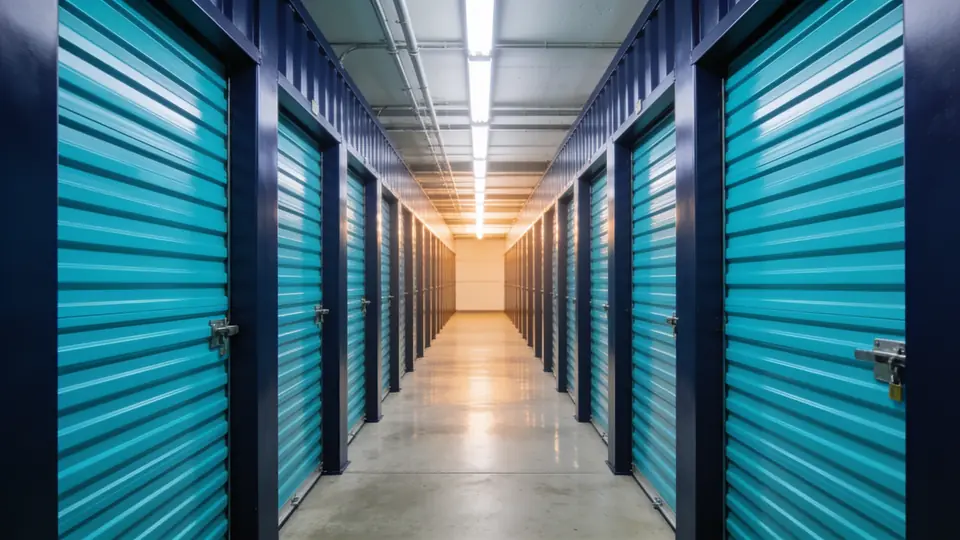
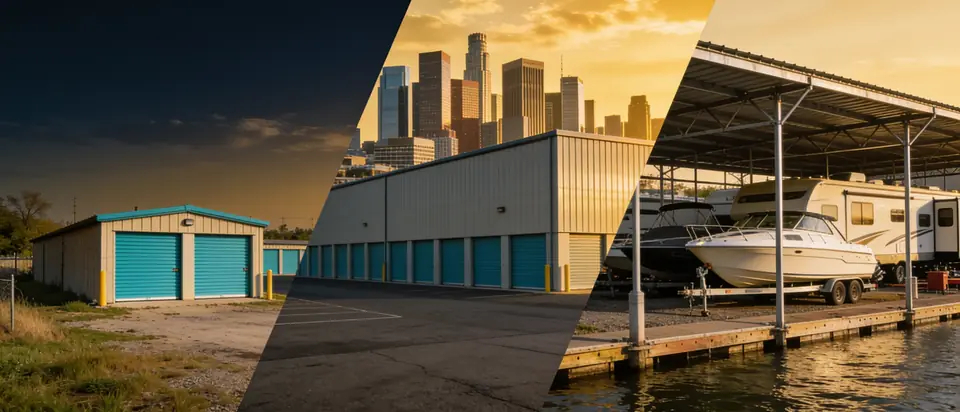
Photo library. Every account gets 62 professional photos to use for free: 30 of self storage (buildings, drive-up units, indoor hallways, lockers, gates and keypads, cameras, entrances and the office), 20 of boat & RV storage (covered canopies, open lots, enclosed garages, boat racks, gates, the office, a dump station and a wash bay) and 12 Light & mood pictures made for the themes (a marina at golden hour, a gate at blue hour, an RV lot at sunset, a lake at sunrise, a bright climate-controlled hallway, mountains, desert, dawn and twilight). Click Photo library next to any photo field – the hero, gallery, about section, share image or a facility card – and pick one; filter by self storage or boat & RV and by what's in the picture. They have no people or brand names, so they fit any facility until you have your own. The Media tab shows the same library with a Copy link button for the places that take a link (space type pictures, facility photo in Settings).
Upload pictures once and use them anywhere: hero, gallery, about, space categories, facility cards. Pictures are stored with your account and copied into every export. Keep them under about 4 MB; wide landscape pictures look best in the hero.
Space categories (uncovered, covered, enclosed, boat rack, drive-up, interior, lockers) come with built-in photos so the site looks finished from day one; replace any of them with your own photo under Spaces → Space types & pricing → Website picture. Facilities do too: until you add a facility photo, its card shows a built-in picture of a boat & RV, self storage or mixed facility (whichever it rents), and the home page banner uses the same picture until you choose one.
Preview and publish
The Preview pane follows your draft as you type, at desktop or phone width. The status line says Draft saved – not published yet or Published · up to date. Publish copies the draft to the live site and records who published and when (in the corporate time zone). You can keep editing after publishing without affecting the live site; the discard button throws all unpublished changes away and goes back to what is live.
What the site does on its own
- Spaces & pricing (
/units) lists every space type with size, price, features and what's open, grouped by category. Visitors reserve or move in from here. - Reserve holds a space for the number of days in Settings → Billing, free of charge; Move in is the six-step online move-in (guide).
- Contact sends a message to the facility email and lists it under the dashboard's lead activity.
- Tenant login opens the tenant portal (
/account). - Documents and Insurance pages exist for tenants who follow a link from a text or email to upload papers.
- The site is fast on phones. Its three-line menu opens even on the oldest phones and closes when the visitor taps anywhere else or picks a link, and the call button dials the facility.